Strategy Editor
The Strategy Editor is where you create, modify, and review strategies. It also shows the backtest result in real time.
Toolbar
The market selector — Server, Symbol, and Period — sits on the left side of the Editor toolbar.

Strategy Builder Professional loads the historical data and performs a backtest of the current strategy every time you change the market.
You can import your own data in the Data Import page.
The right-hand side of the toolbar has the Expert download menu, the Add menu, and the Editor menu.
- Expert offers two downloads of the current strategy. MT5 Compiled Expert compiles it on the SBP server and saves the ready
.ex5file for a MetaTrader 5 chart. The first download takes a few seconds; later downloads of the same expert use the server cache. MQL5 Source Code saves the.mq5file for MetaEditor. Source downloads are currently available to signed-in users; Pro licensing is planned for later. While a download runs, the button is disabled and its icon spins, so a second click cannot start another download. - Add opens a menu with two actions. Add to Collection adds the strategy and its backtest result to the Collection for the current market. If the magic number already exists, SBP updates that record; otherwise, it appends a new record, removing duplicates, resolving correlations when enabled, and trimming to the collection capacity. The collection becomes active on the Collection page. Add to Portfolio saves a copy of the strategy with the trades from the current run, so the portfolio figures include it immediately.
- Editor menu includes New Strategy (Ctrl+Alt+N), which resets the strategy to the defaults (0.01 lots, Bar Open entry, Bar Close exit), and Import an Expert Advisor, which opens a file picker. Import an MQL5 expert previously exported from SBP or EA Studio to restore its market and strategy. The shortcut is ignored while a text-entry field or feature-form select has focus; choosing the menu item still works.
The Undo and Redo buttons sit between the page title and the market selector, and the editor menu repeats them with their keyboard shortcuts: Ctrl+Alt+Z undoes the last strategy change and Ctrl+Alt+Y redoes it. Both are greyed out while there is nothing to restore. On a narrow display the market selector takes a row of its own and the two buttons drop to the next row, ahead of the export actions.
SBP records a strategy state when a strategy is opened from the Collection side panel or the Collection page, an Expert Advisor is imported, an Optimizer or Walk Forward result is accepted, the Generator makes a strategy current, New Strategy clears the strategy, the market changes (from this page's selector or the Generator's), or a feature or indicator is added or removed. Editing feature or indicator parameters previews the new values immediately and records one state when you leave the form; cancelling the preview leaves no step behind. Restoring a state also loads its market data and re-runs the backtest, so undo and redo show a calculated strategy.
The steps belong to the app-wide strategy rather than to one page: a record loaded or a result accepted on another Strategy page is still an undo step once you return to the Editor. Undo and Redo themselves are available only in the Editor, and the history is kept in memory — reloading the browser starts a new one. The last 50 states are kept; older ones are dropped silently, so a very long editing session loses only its oldest steps.
When Data Horizon's Trade start is enabled, the downloaded Expert Advisor bakes the same first tradeable bar as a Trade_Start_Time input, so it begins trading where the editor backtest does while the earlier data still warms up its indicators. Every clock-based rule in the strategy (Trade start, Entry Hours, Exit Hours, session and Friday closes) is baked from the same app timeline: GMT by default, plus the Data Horizon timezone shift when that is enabled, while the Expert gates on the MetaTrader server clock — see Data Horizon.

Market info
The Market Info table shows information for the currently loaded market. SBP uses this data for the backtest.
When the data of the selected market cannot be loaded, the table reports the selected Server and Market with 0 bars and no date range, so it stays consistent with the market selector.
| item | value |
|---|---|
| Server | Premium |
| Market | EURUSD M15 |
| Count of bars | 100,000 |
| Data start | 2022-08-26 11:00 |
| Data end | 2026-09-01 03:00 |
Set the maximum bar count, the data start, the data length, or a sliding period in the Data Horizon page.
See the full data statistics in the Data Statistics page.
Indicator chart
The indicator chart displays the loaded price bars, strategy indicators, and trade markers from the current backtest.
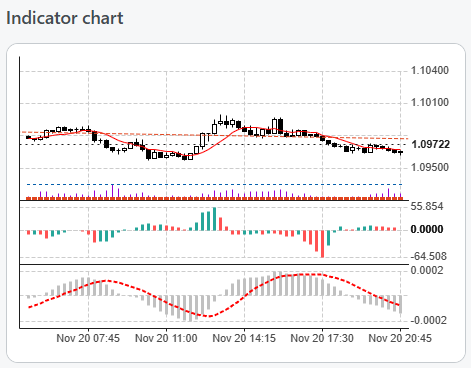
The Strategy Backtest History page provides a larger view of the chart and its deal history. Click the indicator chart to open that page with the first order selected.
Strategy Features
Add a strategy feature from the Add strategy feature drop-down menu.
Edit a listed feature by clicking its label in the Strategy Features panel.
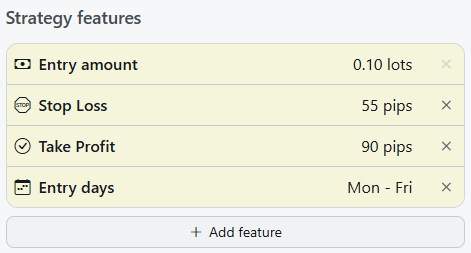
See the Strategy Features index for the full list, grouped by role, with links to the individual feature guides.
| Feature | Description |
|---|---|
| Entry Amount | Base trade size for every new entry. |
| Entry Days | Restricts entries to the selected weekdays. |
| Entry Hours | Restricts entries to a daily time window. |
| Exit Hours | Restricts indicator exits to a daily time window. |
| Stop Loss (SL) | Closes a position to limit the loss; a checkbox turns it into a trailing stop. |
| Take Profit (TP) | Closes a position to secure the profit. |
| Break-even (BE) | Moves the stop to the entry price after activation. |
| Exit at Session Close | Closes open positions at the session close time. |
| Exit at Friday Close | Closes open positions on Friday before the weekend. |
| Max Position Duration | Closes a position after the maximum duration since entry. |
| Max Open Positions | Caps the number of positions open at once. |
| Max Open Volume | Caps the total volume of all open positions. |
| Min Time Since Entry | Delays a new entry after an entry. |
| Min Time Since Exit | Delays a new entry after an exit. |
| Max Spread Protection | Blocks entries when the spread is too high. |
| Long Only | Trades long (buy) positions only. |
| Short Only | Trades short (sell) positions only. With both features off, the strategy trades both directions. |
| Add on Same Signal | Adds to an open position on same-direction signals. |
| Reduce on Opposite Signal | Reduces an open position on an opposite-direction signal. |
| Close on Opposite Signal | Closes an open position on an opposite-direction signal. |
| Reverse on Opposite Signal | Closes and reverses an open position on an opposite-direction signal. |
| Martingale | Scales the entry volume up after losses. |
| Grid Averaging Down | Adds to a losing position at fixed intervals. |
Strategy Indicators
Entry Point

The Entry point determines when the strategy opens a position — at a price or a time.
Available entry point indicators:
The full slot semantics, the indicator families, and the entry price and direction rules are in the Entry Point guide.
Entry Rules
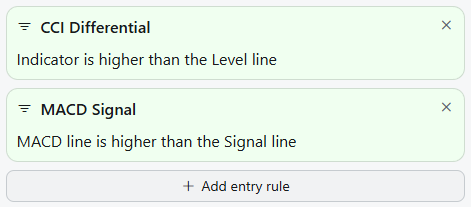
Add a new entry rule by clicking the Add entry rule button.
The entry rules serve as entry conditions, or filters, for opening a position. The full indicator catalog with the slots each indicator supports is in the Indicators index.
They work as follows, depending on their count:
- None — with no entry rules added, the strategy raises an entry signal each time the Entry point is reached.
- One entry rule — a single entry rule allows or denies a position opening.
- Multiple entry rules — the strategy opens a position only when all the entry rules are satisfied. They act as AND logic.
The full slot semantics and the rule families are in the Entry Rules guide.
Exit Point

The Exit point determines when the strategy closes a position — at a price or a time.
Available exit point indicators:
No Indicator Exit never closes a position by an indicator signal. The position closes through enabled Strategy Features, such as Stop Loss, Take Profit, session or Friday close, or an opposite-signal action, or at the end of the backtest.
The full slot semantics, the indicator families, and the exit price and time rules are in the Exit Point guide.
Exit Rules

Add a new exit rule by clicking the Add exit rule button. The button is enabled only while the Exit Point allows exit rules — Bar Open or Bar Close. With any other exit point it is disabled and a hint explains why; picking such a point removes the exit rules the strategy had, as one undoable step (Undo restores the point and the rules).
The exit rules serve as triggers for closing a position. The full indicator catalog with the slots each indicator supports is in the Indicators index.
They work as follows, depending on their count:
- None — with no exit rules added, the strategy exits each time the Exit point is reached.
- One exit rule — a single exit rule allows or denies a position exit.
- Multiple exit rules — the strategy closes a position when one of the exit rules is satisfied. They act as OR logic.
The full slot semantics and the rule families are in the Exit Rules guide.
Backtest stats
A summary of the backtest statistics for the current strategy on the loaded historical data. The five rows are the metrics configured in the Settings page (Backtest stats rows 1 to 5):
| item | value |
|---|---|
| Net profit | 1064.48 USD |
| Count of trades | 302 |
| Profit factor | 2.13 |
| Max drawdown % | 15.01% |
| R-squared | 92.41 |
The table above shows the default rows. Pick any five backtest metrics in Settings — the same rows appear on the Collection page cards, and the Collection side panel shows the first three. When the collection sorting criterion is among the configured metrics, its row is highlighted; otherwise it is inserted as the first row of the table.
The full backtest statistics and the order history are shown on the Strategy Backtest Stats and Strategy Backtest History pages.
When no market data is loaded, the table shows the placeholders (-) instead of the previous market's metrics, so the output never belongs to another market.
Balance chart
The Balance chart shows the balance, equity, drawdown, and deposit load graphs.
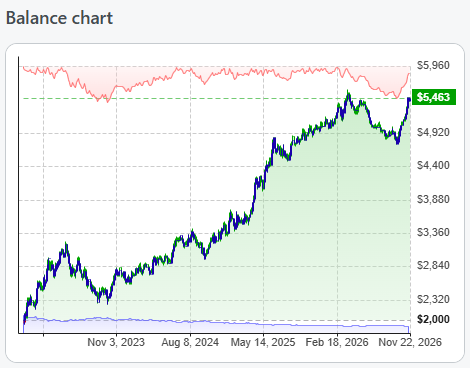
Clicking the balance chart opens the Strategy Backtest Stats page with the backtest statistics.
- Balance line — represents the closed positions.
- Equity line — represents the value of the account over time. It is the account balance adjusted by the floating profit or loss.
- Drawdown — represents the decline of the account equity from its peak value to its lowest point.
- Deposit load — shows the margin required to maintain the open positions.